Browsing the Web UI
This page tours the web UI at http://localhost:3000 in the order you meet it: the home
page, the listings, a repository page, its files, and your own profile. It's for anyone who
would rather click around than script against the API — the CLI and API guides cover the
same ground from the command line.
The home page
The home page (http://localhost:3000) shows dataset, model, experiment, and total storage
counts across the instance, followed by the six most recently updated datasets and the six
most recently updated models. Each entry links straight to its repository page.
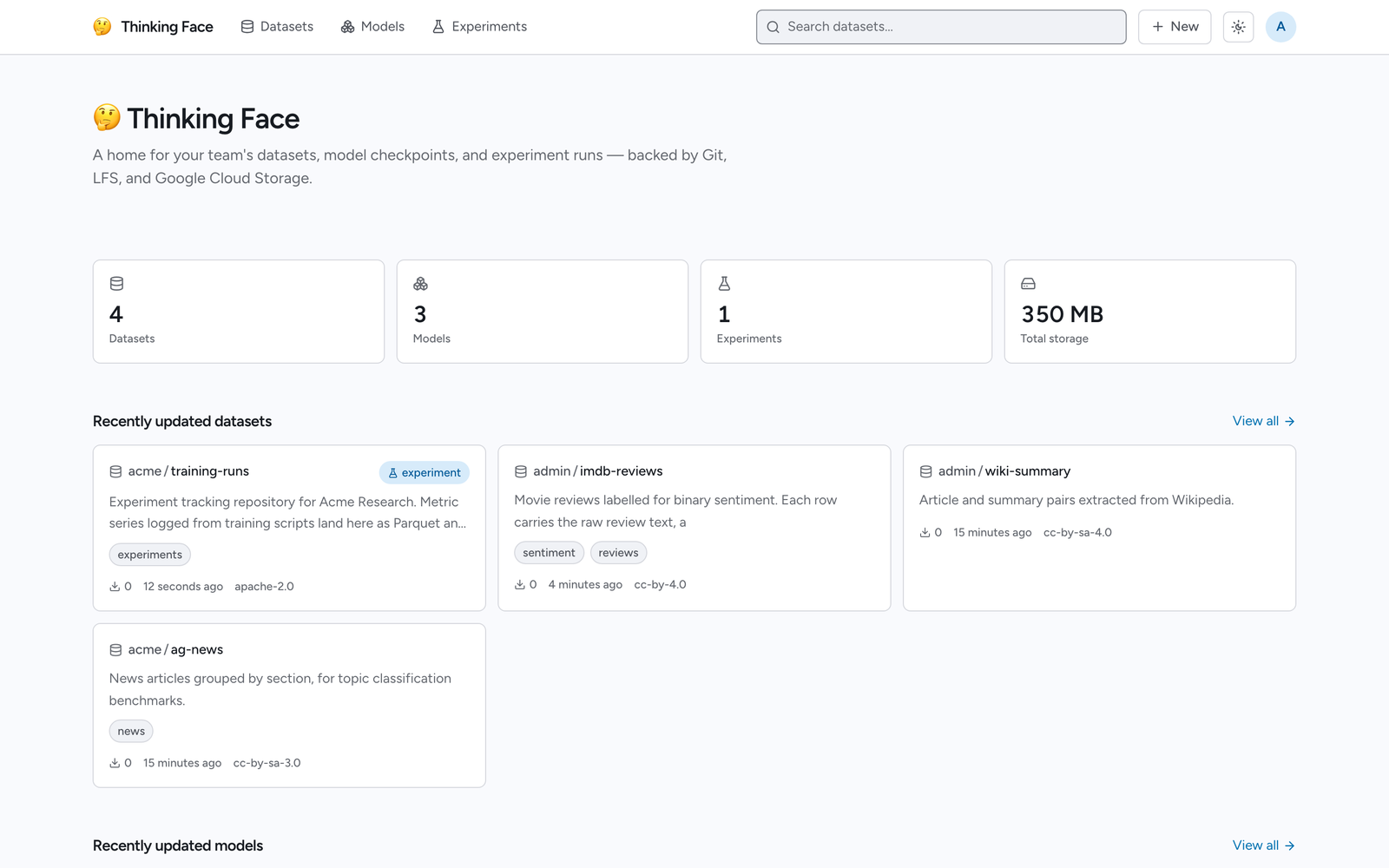
If the backend API is unreachable, the counts and the recent lists show an error state instead of zeros — a failed request is never displayed as "nothing here yet."
Browse the Models and Datasets listings
Models (/models) and Datasets (/datasets) list every repository of that kind,
each as a card with its name, description, and tags. A search box above the list matches
name, description, and tags; a sort dropdown offers Recently updated, Recently created, Most
downloads, and Name.
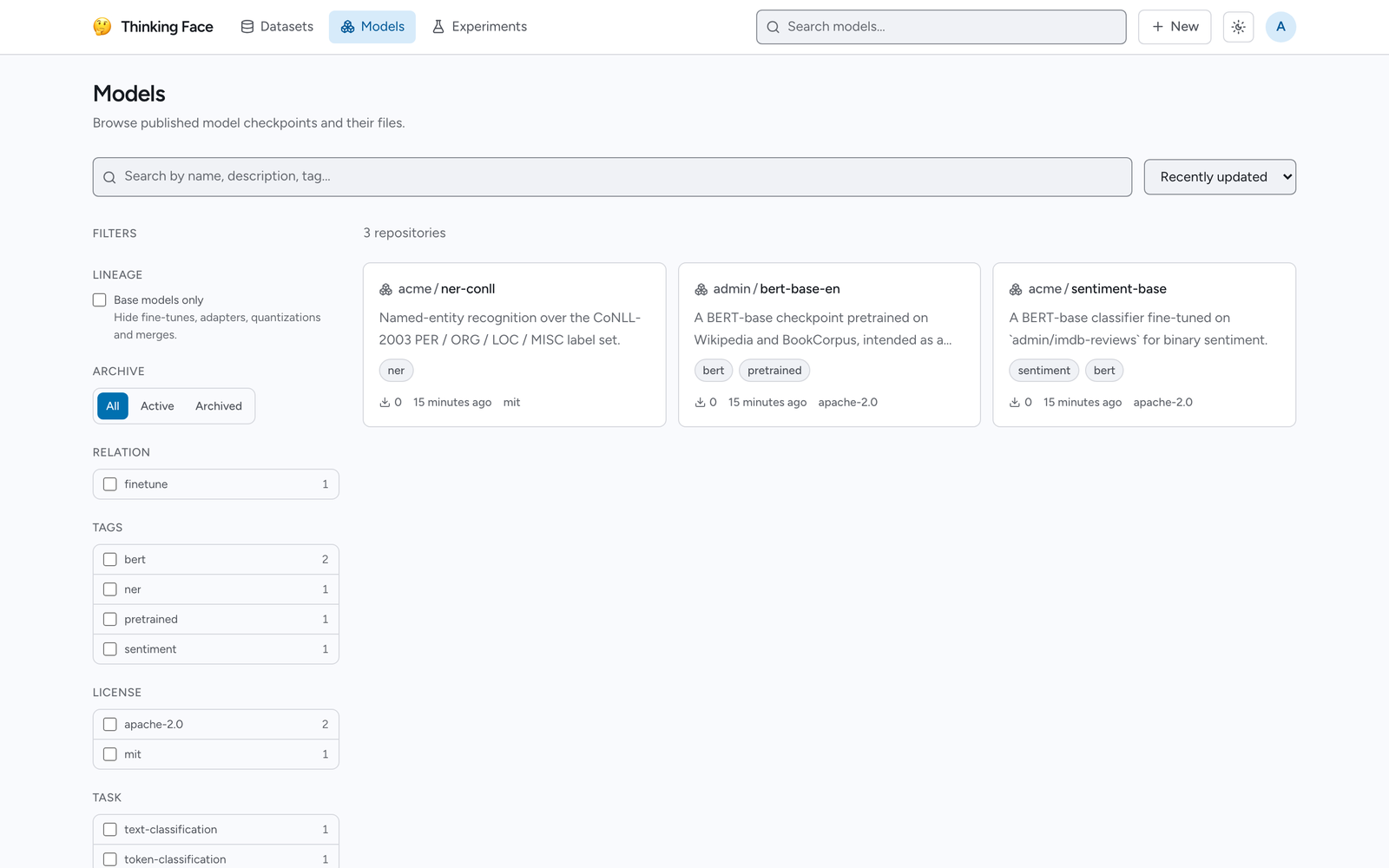
The sidebar next to the results narrows the list further:
- Tags, License, and Task — facets read from each repository's card.
- Relation and Lineage — filter to repositories derived from a given base model (fine-tunes, adapters, quantizations, merges) or a "base models only" toggle that hides all derivatives.
- Archive — All, Active, or Archived. Archived repositories stay visible by default so the badge distinguishes them from deleted repositories; the toggle lets you hide them.
Active filters appear as removable chips above the results, alongside the total match count, and a single "Clear filters" link resets everything.
Open a repository
A repository page (/models/{ns}/{name} or /datasets/{ns}/{name}) has up to five tabs,
shown only when they apply:
- Card — the rendered
README.md(the repository's model or dataset card). - Files — the file tree.
- Viewer — the Parquet table viewer, present only when the repository has at least one
indexed
.parquetfile. See Viewing Datasets. - Experiments — present only on a repository used to track experiment runs. See Tracking Experiments.
- Settings — present only if you can administer the repository.
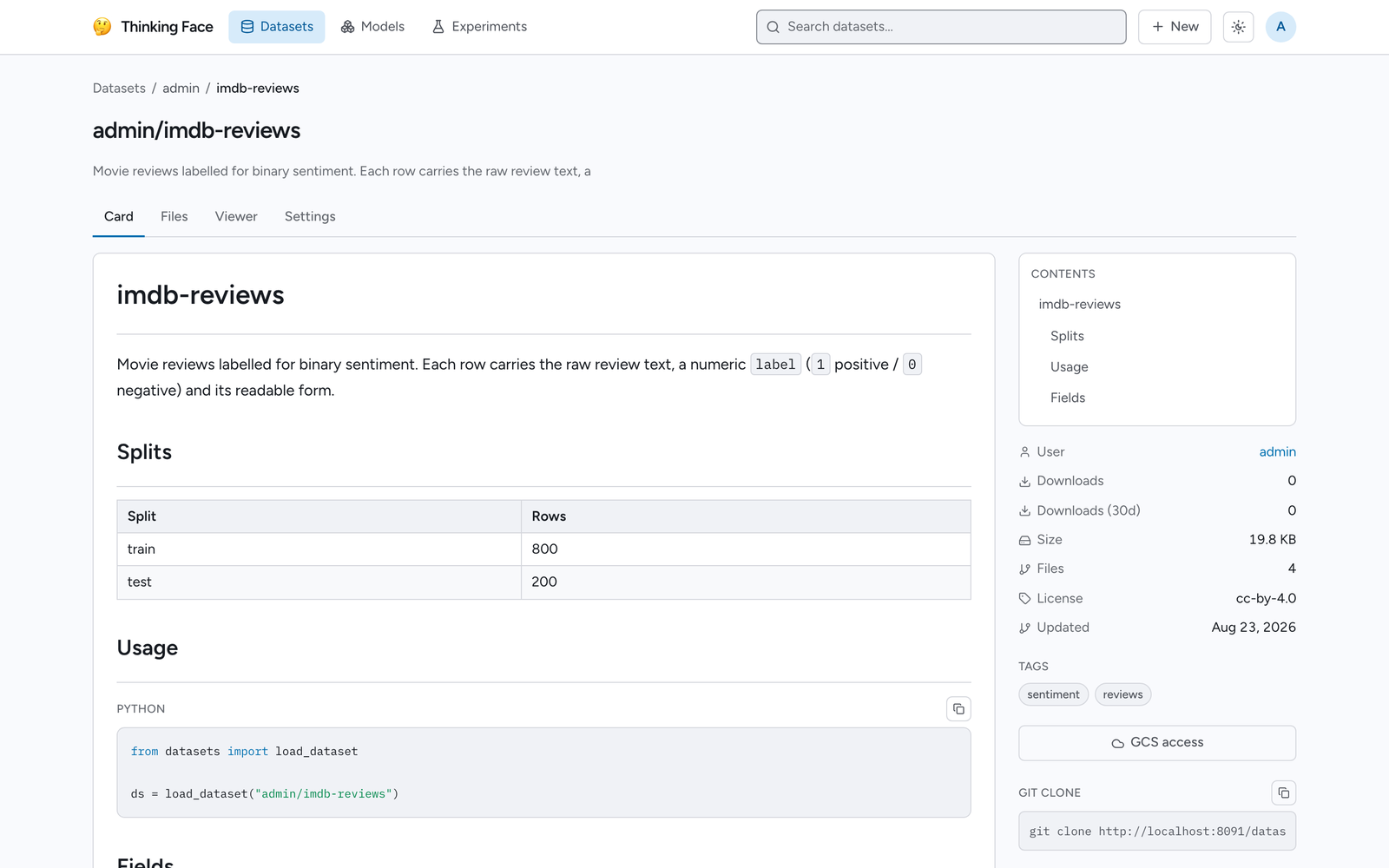
The Card tab renders the README, a table of contents for longer pages, and a sidebar with
file download counts, total size, file count, license, last-updated date, topics, git tags,
the clone URL (over HTTPS, or SSH where the server offers it), and the list of branches. A
Use this model / Use this dataset button there gives you the huggingface_hub and
datasets snippets for this instance, HF_ENDPOINT included:
A repository archived by its owner shows a badge next to its name. Archiving makes it read-only — pushes, in-browser commits, and transfers are all refused — while everything stays readable and downloadable.
The revision selector
Every files/blob/commits view starts with a row showing the current revision — a branch, tag, or commit — as a dropdown, which also offers New branch if you can write to the repository. The row continues with the path as clickable breadcrumb segments. Click the revision chip to switch between branches and tags (a filter box appears once a repository has more than a handful of either); selecting one keeps you on the same kind of page — the tree, a specific file, or history — for the new revision. A path segment's trailing copy icon copies the current path.
The file tree
The Files tab lists a directory's entries: subdirectories first, then files, each with the last commit that touched it, its size, and how long ago it was updated. A file stored as a Git LFS object carries a small LFS badge next to its name; a file thinkingface has indexed as Parquet gets an "Open in viewer" link on the right of its row.
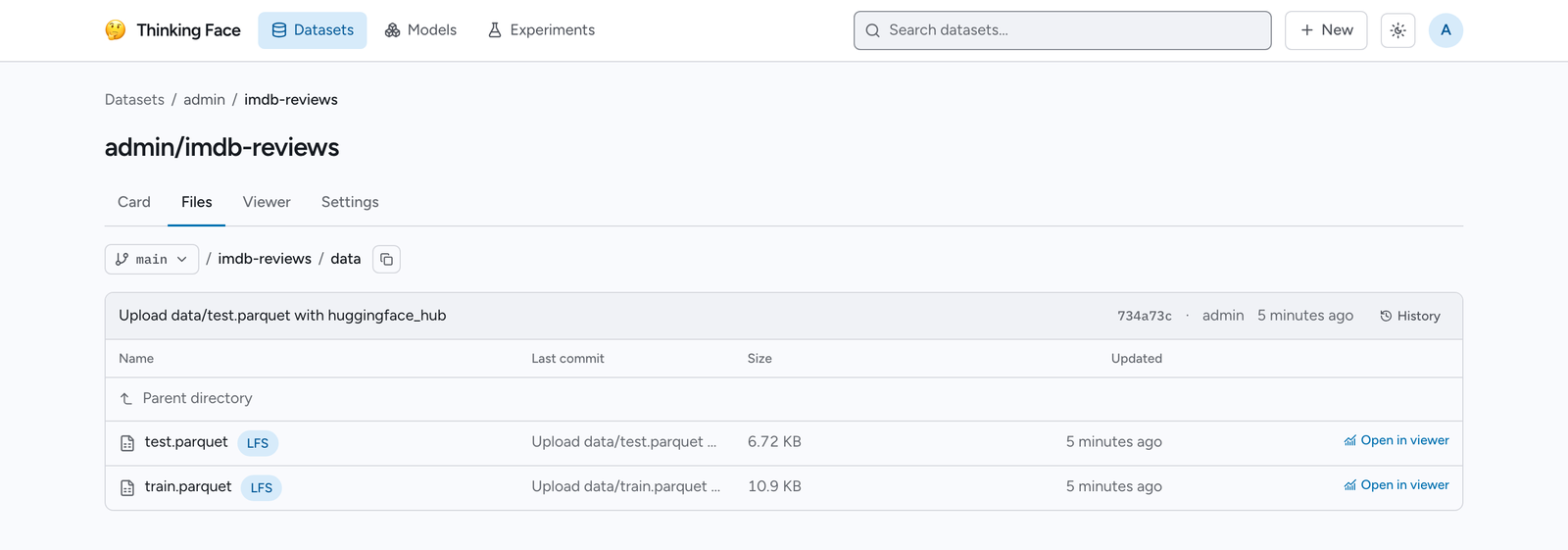
A bar above the table shows the latest commit to the whole directory, with a link to its
full history. If a directory has its own README.md, it's rendered below the table the same
way the top-level card is.
View a file
Opening a file (/blob/{revision}/{path}) shows its size, an LFS badge when it's an LFS
object, its last commit, and a Download link that works for every file type, followed by a
preview appropriate to the file:
- Source and text files render inline with syntax highlighting and a line-number gutter. Each
number is a link, so
#L42in a URL scrolls to that line and highlights it — which is how you point a colleague at one line of a config. - Markdown renders as HTML, with a Rendered / Raw toggle.
- CSV, TSV and JSON Lines (
.jsonl/.ndjson) files under 10 MiB render as a sortable table with a Table / Raw toggle, up to 50,000 rows and 512 columns — past either limit, or when the file doesn't actually parse as tabular data, it falls back to the plain text view instead. When the initial preview is truncated (the file is over 512 KB), the browser fetches the full file itself to build the table; on a production GCS deployment that fetch goes straight to the storage bucket, which needs to allow it — see Deployment if you're setting up storage yourself. - Parquet files show a summary card with an "Open in viewer" link instead of raw content — see Viewing Datasets.
- Checkpoint files (safetensors,
.bin,.pt,.pth,.ckpt) open the model inspector — see Inspecting Models. - Anything else falls back to a download link; a preview larger than 512 KB is truncated with a link to the full file.
Edit and commit a file from the browser
A text or Markdown file that is not an LFS object shows an Edit link next to its size, visible when you have write access to the repository and are viewing a branch (not a tag or a bare commit — editing always writes a new commit onto a branch).
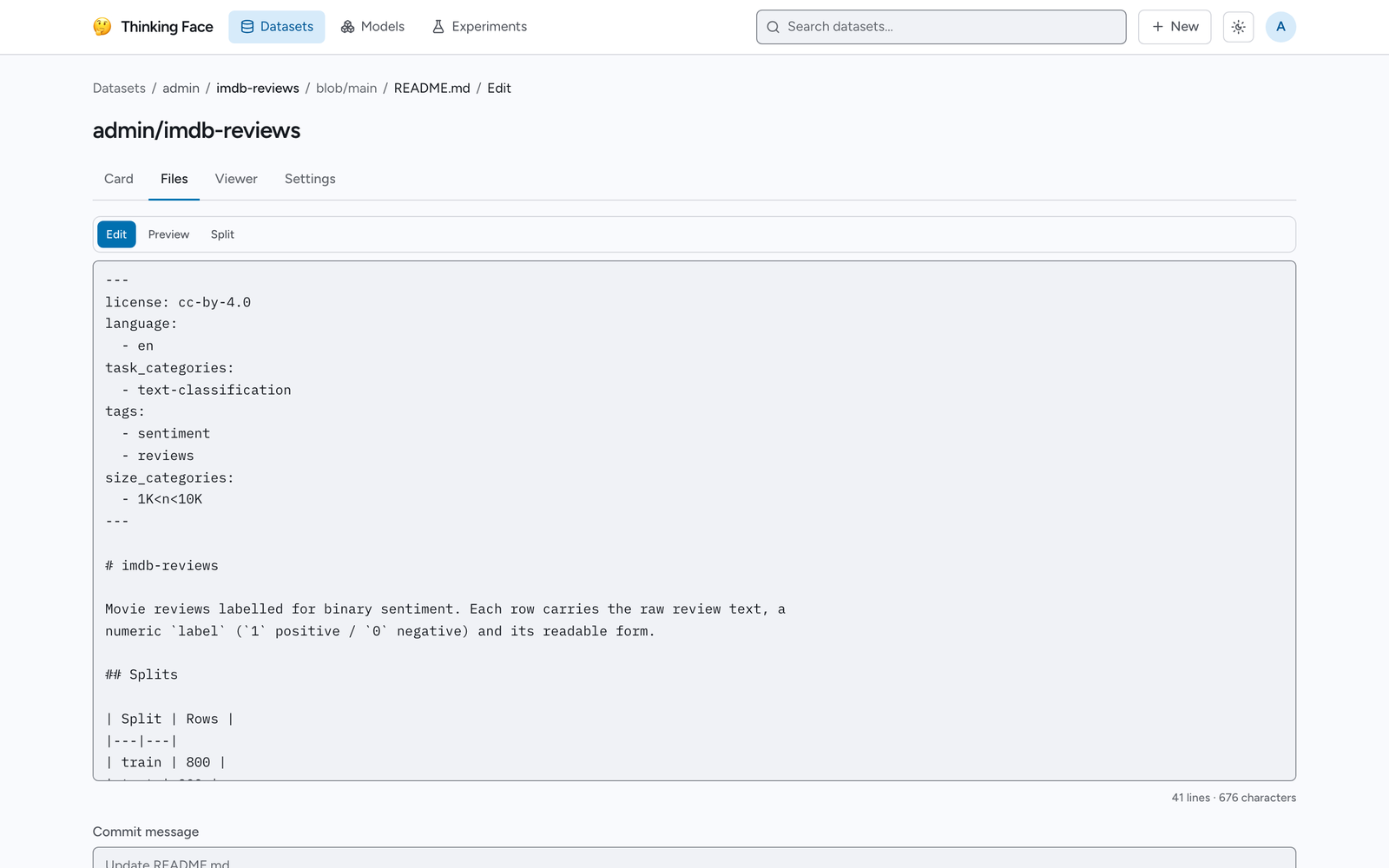
The editor is a plain textarea for most files and a live Markdown preview pane for .md /
.markdown files. Below it, a commit message field (pre-filled with a suggested "Update
{file}" placeholder) and an optional extended description accompany the Commit changes
button. Leaving the page with unsaved changes prompts for confirmation, whether you navigate
away or close the tab.
If someone else committed to the same file while you were editing, saving fails with a conflict message rather than overwriting their change; your edit stays in the box so you can reload and reapply it.
Rename or move a file
A file's page also shows a Rename button next to Edit and Delete, under the same conditions (write access, on a branch). Unlike Edit, it's offered for every file — including LFS-tracked ones — since a rename moves a tree entry by content hash without reading or re-uploading the bytes, so an LFS pointer travels as a pointer.
Rename and move are the same control: the field is pre-filled with the file's whole path from the repository root, so changing the last segment renames it and changing the directory part moves it to a different location. Confirming commits the change as a single commit.
Add files from the file tree
The Files tab carries an Add file menu above the listing whenever you have write access to the repository and are looking at a branch. It has two entries:
- Upload files opens a dialog you can drop files onto (or click to pick them). Chosen files are listed with their sizes and can be removed again before you commit; a commit message field sits below them. Everything in one dialog becomes a single commit, placed in the directory you were browsing. Files that belong in Git LFS are routed there automatically — you do not install or configure anything. A progress bar shows how much has been sent, and the dialog stays open, with the error explained, if the upload is refused.
- Create a new file asks for a path and opens the same editor described below at that
path, with an empty document. This is the way to start a
README.mdin a repository that has nothing in it yet.
The menu is also there when the directory is empty, which is what makes a repository created in the UI usable without touching git.
Delete a file
A file's page shows a Delete button next to Edit, under the same conditions (write access, on a branch). It always asks for confirmation first, and then removes the file in a commit of its own — the file remains in every commit that came before, so nothing is lost from the history.
Unlike editing, this works for LFS-tracked files as well: deleting one removes the pointer
from the tree, but not the stored object or your namespace's storage usage — the commit that
added the file is still in the repository's history, so the object has to stay retrievable at
that revision for as long as the repository exists. Only an LFS upload that never made it into
a commit at all is ever reclaimed by garbage collection. See
Uploading Files and the
TF_DEFAULT_STORAGE_QUOTA_BYTES row in Configuration for
what actually frees the space.
Manage branches and tags
The repository's Settings tab lists every branch and tag with the commit it points at, and lets you create a tag or delete a ref. Creating a branch is on the revision selector instead, where you are already standing on the revision to branch from. The default branch has no delete control: the server refuses to remove it, so the reason is shown where the button would be.
Tagging takes a name, the revision to tag, and an optional message — a message makes it an
annotated tag, exactly as git tag -m would.
None of this needs a shell. The equivalent huggingface_hub calls are in
Working with Git.
Commit history
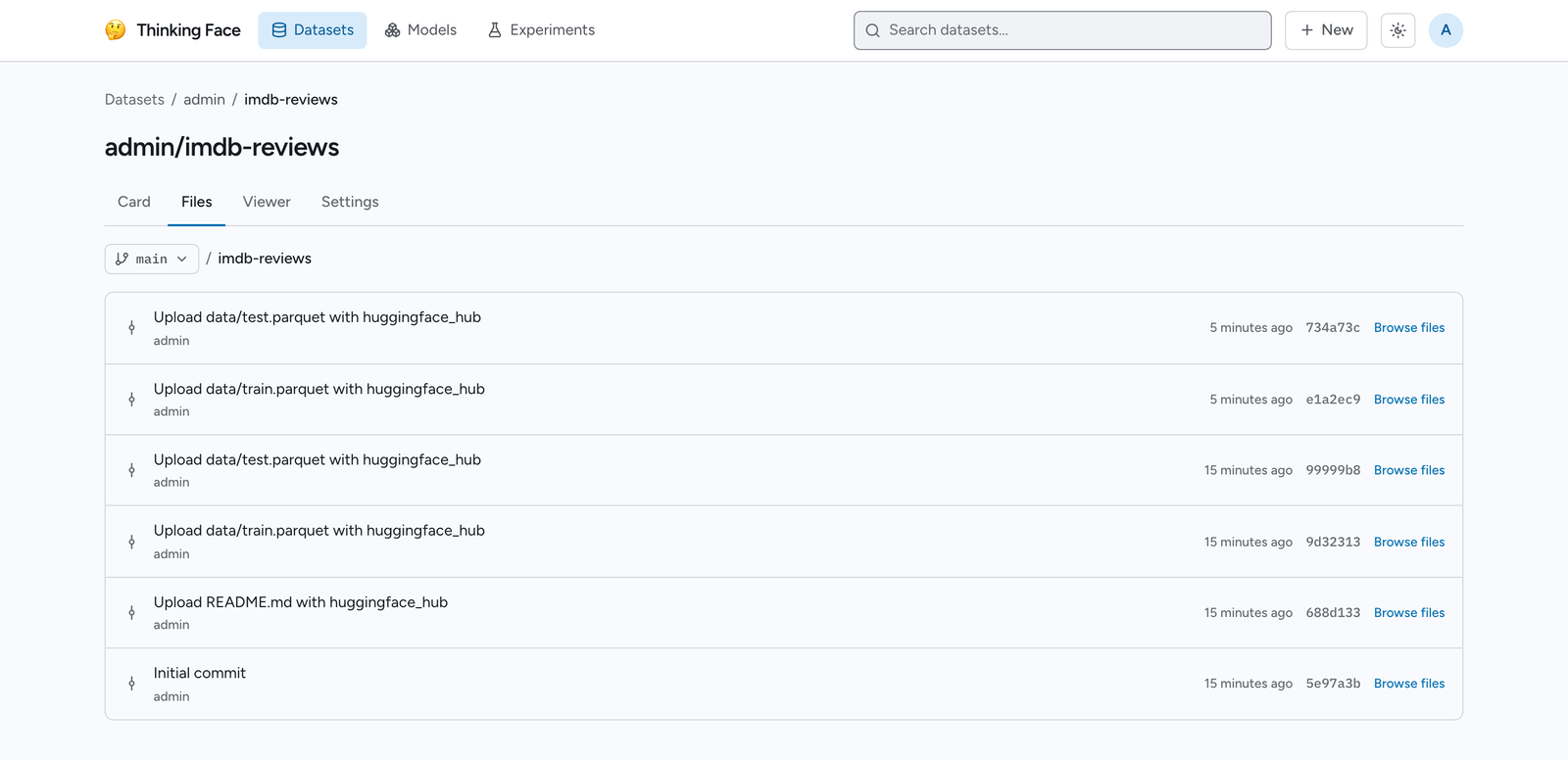
The Commits view (/commits/{revision}, or reachable from a directory's or file's history
link) lists commits one per row: message, author, relative time, short commit SHA, and a
"Browse files" link that opens the tree as of that commit. Opening it from a specific file or
directory restricts the list to commits that touched that path, with a "Clear filter" link
back to the unrestricted history.
Commit diff
Both the commit message and the short SHA in a commit row link to that commit's diff page
(/commit/{sha}). It lists every file the commit touched with an added/modified/deleted
badge, followed by a unified diff per file with the added/removed line counts. A file's diff
can be collapsed without losing the rest of the page.
Not every file gets a patch: a binary file, an LFS pointer change, a diff too large to render, a change with no text difference (a mode change, for instance), an unsupported case, or the page simply running out of its per-request diff budget all show the file in the list with a badge but no patch, and say which of those reasons applies instead.
The namespace page
/{namespace} (for example /admin or /acme) consolidates everything a user or
organization owns: its models, datasets, and experiment repositories, each in its own tab
alongside a Members tab for organizations. The models and datasets tabs are the same
listing, search, and filter UI as the global /models and /datasets pages, scoped to that
namespace. A namespace with nothing under a given tab yet shows an empty state, with a
"Create the first repository" shortcut if you have permission to publish there.
The organizations directory
/orgs lists every organization on the instance — name, description, and member/repository
counts — with the same search box and pagination pattern as /models and /datasets, and a
"Create organization" shortcut when you have permission to create one. See
Organizations for what an organization page itself offers.
Light / dark theme
A theme toggle in the header cycles Auto → Light → Dark → Auto. Auto follows the browser's
prefers-color-scheme; Light and Dark override it. The choice is remembered per browser (not
tied to your account), so it does not follow you to a different device.
Your profile
Sign in and go to Settings → Profile (/settings/profile) to edit your display name,
bio, website, and avatar URL. Your username is fixed — it's also your namespace — and shown
read-only; changing it requires a namespace transfer (see the Transfers page under Settings).
A "View profile" link opens your own /{namespace} page.
Switch the display language
The web UI ships English and Japanese. Settings → Language (/settings/language) offers
a three-way choice — Auto (follow the browser's language), English, or Japanese — saved to a
cookie and applied on your next page load. Auto shows which language it resolved to based on
your browser's Accept-Language header.