Authentication
This page covers every way to prove who you are to a thinkingface instance: signing in to the web UI, issuing and using access tokens, registering an SSH key, and the security controls around all of it. It's aimed at anyone using an existing instance; for the environment variables that configure these behaviors on the server side, see Configuration.
Signing in to the web UI
The web UI's login page (/login) has Log in and Sign up tabs. Logging in
successfully sets a tf_session cookie: signed, HttpOnly, SameSite=Lax, and marked
Secure whenever the instance is served over HTTPS. The cookie carries no readable
information itself — the server verifies its signature and checks it against the account's
current session state on every request, so signing out or changing your password
invalidates it immediately even though the cookie value itself hasn't expired yet.
By default the cookie is valid for 7 days after issue (configurable by the instance operator
via TF_SESSION_TTL). Signing out clears it; the browser session then falls back to
anonymous access, which still works for any repository that's public.
Self-service signup
Whether the Sign up tab actually creates an account depends on the instance: operators
can disable self-service signup (TF_ALLOW_SIGNUP=false), leaving only accounts an admin
creates directly. When signup is open, a new account needs a username, an email address, and
a password of at least 8 characters (and, because passwords are hashed with bcrypt, at most
72 bytes).
Two further controls can narrow signup without closing it:
TF_SIGNUP_EMAIL_DOMAINSlimits it to a list of email domains. The match is case-insensitive and exact — an instance that listsexample.comacceptsalice@example.comand refusesalice@sub.example.com, because a domain silently admitting every subdomain of itself is the kind of surprise you only notice as an unwanted account. A refused address is told which domains are accepted, so the form is still fillable.TF_SIGNUP_REQUIRE_APPROVALputs new signups in a waiting room. The account is created, but no session is issued and it authenticates on nothing — not its password, not an access token, not an SSH key — until an administrator approves it at Settings → Users. The signup form says so rather than pretending to sign you in, and trying to log in before approval answers 403account_pending(only ever with the correct password, so it tells nobody else that the account exists).
Every instance also seeds one admin account on first boot, from TF_ADMIN_USERNAME /
TF_ADMIN_PASSWORD / TF_ADMIN_EMAIL (defaulting to admin / admin /
admin@example.com if the operator hasn't changed them — change these before exposing an
instance to anyone else).
Changing your password
Change your own password at Settings → Account (/settings/account). The form asks for your
current password, the new one, and the new one again. The current password is always verified:
being signed in isn't on its own permission to replace the credential the session was minted
from. A new password must be at least 8 characters and at most 72 bytes — the same rule signup
applies.
Changing it signs out every other browser. The session cookie carries a revocation counter that the change bumps, so anything still holding an old cookie is rejected on its next request; the tab you changed it in is re-issued a fresh one and stays signed in.
Your access tokens keep working. A token is a separate credential with its own list and its
own delete button, and a routine password change says nothing about any of them — revoking them
all would break unattended clients (CI jobs, git, the tf CLI) for no gain. If a token itself
leaked, delete that token at Settings → Access tokens.
When an admin resets a password
TF_ADMIN_PASSWORD only ever creates the very first account, on an instance whose user table is
empty; changing it afterwards has no effect. So a forgotten password is fixed by another
administrator, not by editing an environment variable — or, when there is no other
administrator, from the server's own command line
(Recovering a locked-out instance).
Accounts with site administrator rights get a Settings → Users entry
(/settings/admin/users) listing every account on the instance, with a search box over
usernames and email addresses. Each row offers:
- Reset password — set a new password for that account. It signs out every browser they have open; their access tokens are untouched, exactly as for a self-service change. There is no email round trip, so hand the new password over out of band and let them change it themselves at Settings → Account.
- Make admin / Revoke admin — grant or remove site administrator rights. This is how an instance gets a second administrator, and therefore how it stays recoverable if the first one loses their password.
- Suspend / Restore — turn an account off and back on. A suspended account authenticates
on nothing: not the web UI, not its password over HTTP Basic, not its access tokens, not its
registered SSH keys. This is what an offboarding needs, because a password reset on its own
leaves the departing account's tokens and keys working for
git push. Suspending destroys nothing, so restoring brings the account back as it was — minus its sessions, which stay revoked. - Revoke credentials — delete every access token and SSH key the account holds, and sign it out. Unlike suspension this cannot be undone, and it does not stop the account working: it is for credentials you think have leaked (a lost laptop, a token in a build log) on an account that should keep going once new ones are issued.
- Approve / Hold for approval — let an account out of the signup waiting room, or put
it back. This only appears on instances running
TF_SIGNUP_REQUIRE_APPROVAL, where a self-registered account starts out unable to authenticate on any path at all; approving is what actually lets that person in. Accounts waiting for approval are badged and sorted to the top of the list, with a banner above it, so nobody sits locked out unnoticed. Holding one again signs it out everywhere immediately. It is independent of suspension: approving does not un-suspend, and restoring does not approve.
The list also shows each account's Last login — the last time a password signed it in. Access tokens and SSH keys have their own last-used dates and deliberately don't move this one, because the question it answers is "is anybody still using this account", which a nightly CI token answers wrongly. Never means exactly that, including for every account that existed before the column did.
Add user at the top of the same screen creates an account outright: a username, an email
address, a password, and optionally the administrator flag. It works whether or not
self-service signup is open — that is the point of it. On an instance running
TF_ALLOW_SIGNUP=false this is the only way anyone new gets an account, so closing signup is
not a one-way door. The username becomes that account's namespace (dana/*) and can never be
changed, so it goes through the same rules signup applies, reserved names included. As with a
reset, there is no invitation email: pass the password on out of band and have them change it
at Settings → Account.
Two rules stop an instance from locking itself out: you can't revoke your own administrator access or suspend your own account (ask another administrator), and the last administrator who is still active can't be demoted or suspended at all. A suspended administrator does not count towards that last one — an account that cannot sign in is no more able to recover the instance than a missing one. The restriction is enforced by the server for every one of these actions, not merely hidden by the UI.
Site administration is browser-only
Every /api/v1/admin endpoint accepts the session cookie and nothing else. An access token
or HTTP Basic credentials are refused with 403 session_required, even when the account
behind them is an administrator. A single leaked write-scoped token used to be enough to
create accounts, reset anyone's password, and register an SSH key that outlives the token's
revocation; requiring a browser session keeps automation out of that blast radius. Use the
screens under Settings.
Recovering a locked-out instance
Everything above assumes somebody can still sign in. When nobody can — the only administrator
forgot their password, and /api/v1/admin accepts a browser session and nothing else — the
repair runs on the server itself, next to the database:
# In the container or on the host running the server, with the same
# DATABASE_URL the server uses:
thinkingface admin passwd alice     # prompts twice, with no echo
thinkingface admin promote alice    # grant site administrator rights
- The password is never an argument. It's read from the terminal without echo (twice, and the two must match), or from standard input when there is no terminal, so an automated run can do it unattended:
printf '%s' "$NEW_PASSWORD" | thinkingface admin passwd alice
A password passed as an argument would sit in the shell history of whoever typed it and in the process list for every other user on the machine, which is why there is no flag for it.
admin passwdapplies the same rules the web UI does — at least 8 characters, at most 72 bytes — and, like every other password change, signs the account out everywhere while leaving its access tokens and SSH keys alone.admin promoteis how an instance regains an administrator when it has none. There is no matching "demote": taking rights away is ordinary administration, not an emergency, and it already has a screen and a last-administrator guard.- Both commands say what they did and to whom, and warn you when the account they just fixed is still suspended or still waiting for approval — both of which refuse even a correct password, so without the warning you would think you were done.
A third subcommand, admin token create, mints an access token from the same place without a
browser — for provisioning an instance or a CI job. See
Minting a token from the command line.
Authorization here is shell access to the deployment: anyone who can run this could already read the database directly. That is the point — it is the one repair that does not need a working account, and it replaces "edit the users table by hand" as the answer of last resort.
Failed background jobs
Administrators also get Settings → Sync jobs (/settings/admin/sync-jobs). Every push
schedules background work that rebuilds the repository's file listing, search entry and object
storage export. When that work fails repeatedly it parks, and the repository stays indexed at
its previous push — the files you see are stale even though the push succeeded. This screen
lists the parked jobs with the error from their last attempt, and Retry puts one back in
the queue with a fresh budget. An empty list is the healthy state.
Access tokens
An access token (tf_xxxxxxxxxxxx) is what every non-browser client uses: huggingface_hub,
git, the tf CLI, and direct API calls. Issue one at Settings → Access tokens
(/settings/tokens), signed in to the web UI:
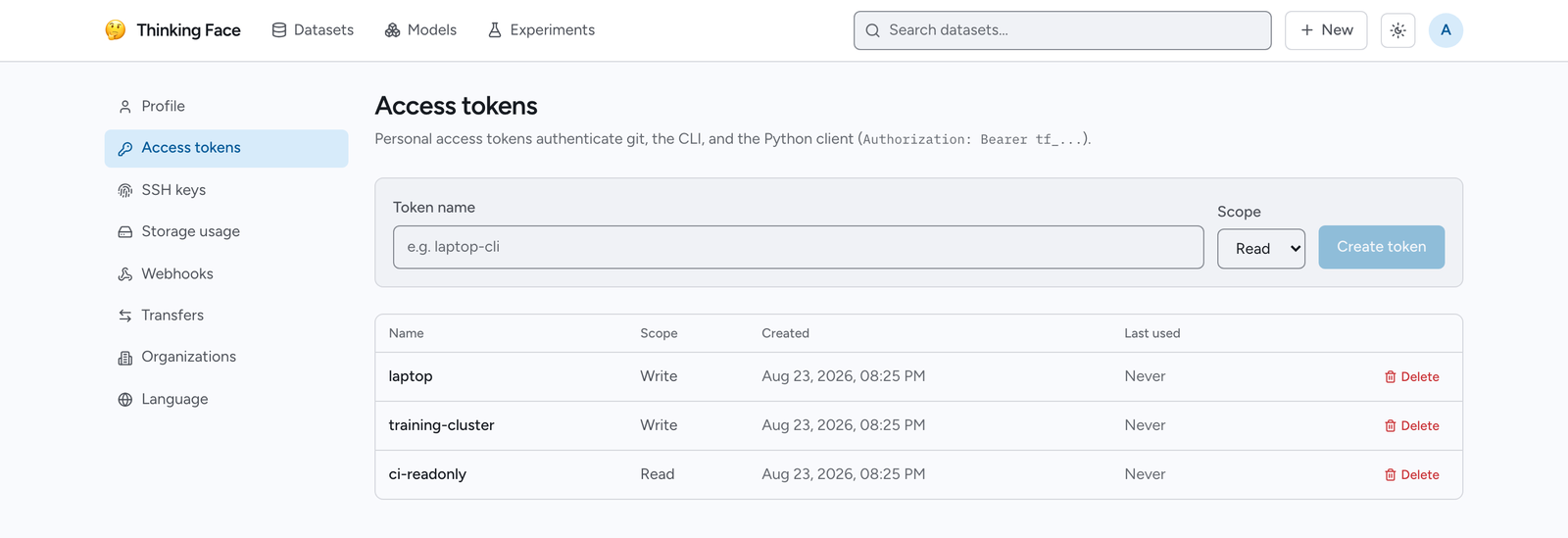
Give the token a name, a scope, an expiration and, optionally, the repositories it is restricted to, then create it:
| Scope | Meaning |
|---|---|
read |
Can read repositories you have access to; cannot push, create, delete, or manage tokens/SSH keys |
write |
Everything read can do, plus pushing commits, creating and deleting repositories, and managing your own tokens and SSH keys |
Expiration is one of No expiration, 7, 30, 60, 90, or 365 days (365 is the maximum). Once a token's expiration date passes it stops authenticating requests — the same as if it had been deleted — though it still appears in the token list, badged as expired, so you can tell why it stopped working and remove it.
The token's value is displayed exactly once, immediately after creation — copy it before navigating away, since the server only ever stores its hash and cannot show it to you again. If you lose it, delete the token and create a new one.
The token list shows each token's name, scope, the repositories it is restricted to (All for an unrestricted token), creation date, last-used date, and expiration (or Never for one with no expiration), and lets you delete a token (with a confirmation step) at any time — deleting it takes effect immediately, the same as letting it expire.
Minting tokens needs a write-scoped credential
Creating or deleting a token or an SSH key always requires write scope, even though reading the list only requires being signed in. A read-scoped token cannot use itself to mint a more powerful one, and neither can a repository-restricted token (below).
Restricting a token to repositories
A write token can be restricted to a list of repositories. Fill in Restrict to repositories
on the token form — one per line, as datasets/NAMESPACE/NAME or models/NAMESPACE/NAME (the
plural kind, as in the web UI's URLs) — or leave it empty for an ordinary, unrestricted token. The
field appears for write tokens only: a read token changes nothing, so a list would restrict
nothing.
A restricted token:
- reads exactly like an unrestricted token of the same user — the restriction is about what it may change, not what it may see;
- may write —
git push,huggingface_hubuploads and commits, LFS uploads, file edits, experiment ingest, run annotations, project notes and metric goals — only to the listed repositories, and only while you yourself still have write access to them; - may not perform administrative repository operations anywhere, listed repositories included: delete, archive, rename, change settings, transfer;
- may not perform account-level writes: create repositories, mint or revoke tokens, register SSH keys, change your profile or password, manage organizations or webhooks.
Anything outside that is refused with 403 and the error type token_restricted. One
huggingface_hub convenience keeps working: create_repo(..., exist_ok=True), which
push_to_hub and most upload scripts call first, succeeds for a listed repository that already
exists.
Each listed repository must exist and you must have write access to it when the token is created, so create the repository first — a restricted token cannot create one. The list is stored by repository, not by name: the grant follows a repository through a rename or transfer, and never passes to a different repository that later takes a listed name. A token whose repositories have all been deleted can change nothing; it does not become unrestricted.
Over the API, pass the list as repos when creating the token (at most 32 entries):
curl -X POST http://localhost:8080/api/v1/tokens \
  -H "Authorization: Bearer tf_xxxxxxxxxxxx" -H "Content-Type: application/json" \
  -d '{"name": "ocr-agent", "scope": "write", "expires_in_days": 7,
       "repos": ["datasets/alice/trackio-metrics"]}'
The credential making this request must itself be an unrestricted write credential.
Give AI agents and CI a restricted, expiring token
A token handed to an AI agent, a CI job or a rented GPU machine should be able to do exactly
what that job needs and nothing else. A write token restricted to the one experiment
repository the job logs to, expiring in 7 or 30 days, lets it ingest metrics, annotate runs
and edit notes there — and if it leaks, it cannot delete a repository, push anywhere else, or
mint itself a successor. Every request it makes is attributable in the server's access log
(token_id, token_name). See Using thinkingface from AI agents.
Minting a token from the command line
thinkingface admin token create mints an access token without a browser, for provisioning a new
instance or handing a token to automation. Like admin passwd, it runs next to the database with
the same DATABASE_URL the server uses, and applies exactly the rules the web UI does:
thinkingface admin token create <username> [--name NAME] [--scope read|write]
    [--expires-in-days N] [--repo KIND/NS/NAME ...] [--output FILE]
| Flag | Default | Meaning |
|---|---|---|
--name |
admin-cli |
the label shown in the token list |
--scope |
write |
read or write |
--expires-in-days |
0 (never) |
1–365 days |
--repo |
(unrestricted) | restrict the token to this repository, as datasets/NS/NAME or models/NS/NAME. Repeatable |
--output |
(stdout) | write the token to this file instead, created with mode 0600; refused if the file exists |
The token — and nothing else — goes to stdout (or to --output); what was created, for whom, and
until when goes to stderr, so TOKEN=$(thinkingface admin token create ...) captures exactly the
token. Under Docker Compose, run it inside the api container with -T so that no terminal is
allocated (a terminal would merge stderr into stdout):
docker compose exec -T api thinkingface admin token create admin \
    --name ci --expires-in-days 30 --repo datasets/admin/trackio-metrics > ci-token.txt
Minting is logged as access token created with actor: admin-cli. As with the other admin
commands, whoever can run this already has the database.
Using a token
With huggingface_hub / datasets: point HF_ENDPOINT at your instance and set
HF_TOKEN to the token value (also set HF_HUB_DISABLE_XET=1 — see
Compatibility for why):
export HF_ENDPOINT=http://localhost:8080
export HF_TOKEN=tf_xxxxxxxxxxxx
export HF_HUB_DISABLE_XET=1
With git over HTTP: use the token as the password in Basic auth; the username is ignored, so anything non-empty works:
git clone http://admin:tf_xxxxxxxxxxxx@localhost:8080/datasets/admin/imdb-reviews.git
With the tf CLI: run tf login interactively, pass --token, or set
THINKINGFACE_API_KEY in the environment. See tf CLI
for the full precedence order.
With the raw API: send it as a bearer token:
curl -H "Authorization: Bearer tf_xxxxxxxxxxxx" http://localhost:8080/api/whoami-v2
Git over HTTP also accepts this same header form; the Basic-auth form above is only needed where a tool insists on a username/password prompt.
SSH keys
If the instance operator has enabled git-over-SSH, you can register a public key at
Settings → SSH keys (/settings/ssh-keys) and clone or push over SSH instead of HTTP,
without a token in the URL:
git clone ssh://git@localhost:2222/admin/imdb-reviews.git
Paste the full line from your .pub file (for example ssh-ed25519 AAAA... you@example.com).
Accepted key types are Ed25519, ECDSA, and RSA (2048 bits or larger); DSA keys are rejected
with an explanation. Registering a key requires a write-scoped credential, the same as
minting a token. Each fingerprint can only be registered to one account instance-wide.
Security notes
- By default, authentication gates writes, not reads. thinkingface has no per-repository
visibility setting, so every repository is readable — including by unauthenticated callers —
by anyone who can reach the instance. A token controls what its holder may write; it is not
what keeps a repository unread. See
Compatibility. An operator can
close anonymous reads instance-wide with
TF_REQUIRE_AUTH_FOR_READ(Deployment); every signed-in account and every valid token can then still read every repository. - Rate limiting: failed password attempts (both the web UI's login form and HTTP Basic
auth, which every route accepts) are throttled per client address (an IPv4 address, or an
IPv6 /64), at half that rate per username from that address, and at five times it per
username across all addresses — so failures from a single host or network can't lock an
account out for someone signing in from elsewhere, while guessing spread over many addresses
is still capped. The flip side of that cap is that an attacker spread across enough
networks can exhaust it and keep the account throttled while the attack lasts. Only
failures count; successful logins never consume the budget. A throttled request gets
429with aRetry-Afterheader. The instance operator controls the base rate viaTF_AUTH_RATE_LIMIT_PER_MIN(10 per minute by default;0disables the limiter entirely). - Only the smart git protocol is accepted. A dumb-HTTP git client gets a clear error telling it to upgrade rather than failing obscurely.
- CORS: state-changing requests authenticated via the session cookie are only accepted
from an allowlisted origin (the web UI's own origin, plus
localhost:3000over plain HTTP in development). A token-authenticated request isn't subject to this, since it can't be triggered ambiently by a browser the way a cookie can. When the web UI reaches the API through its own same-origin proxy (the default), the proxy performs the equivalent check against its own origin before forwarding.
See also
- tf CLI — credential resolution order and the
tf login/tf statuscommands - Compatibility — what
HF_TOKEN, git, and SSH each cover - Configuration — the environment variables mentioned above, from the operator's side