Viewing Datasets
thinkingface can show you the rows of a Parquet file directly in the browser, without downloading it. This page covers what makes a file viewable, how to open the viewer, and what it can and can't do. It's for anyone who wants to spot-check a dataset before writing any code against it.
What makes a file viewable
Any file whose path ends in .parquet is indexed automatically the next time it's pushed, in
both model and dataset repositories. No manual step or configuration is needed — push a
.parquet file and it becomes viewable. Indexing isn't limited to the default branch: it runs
for whichever branch was just pushed, so the Viewer tab and viewer links work on any branch
that has an indexed Parquet file, not only the default one. Tags are the exception: pushing or
creating a tag schedules no indexing job (the server never sees a git push --delete on a tag
either), so a .parquet file that only exists on a tag is not viewable — see
Webhooks for the same gap on the webhook side.
Arrow files are not indexed and get the plain file preview described in Browsing the Web UI. CSV, TSV and JSON Lines files are not indexed into the Parquet-style viewer either, but under 10 MiB they still get a real, sortable table in the file preview itself (rather than falling all the way back to plain text) — see Browsing the Web UI for what that looks like.
A repository that was just pushed to may briefly show an "indexing" banner while the server finishes scanning it — the Viewer tab and the file tree's viewer links can lag a push by a few seconds.
Open the viewer
Once at least one Parquet file is indexed, the repository page gains a Viewer tab. Opening it, or clicking "Open in viewer" from the file tree or a file's own preview, loads the table:
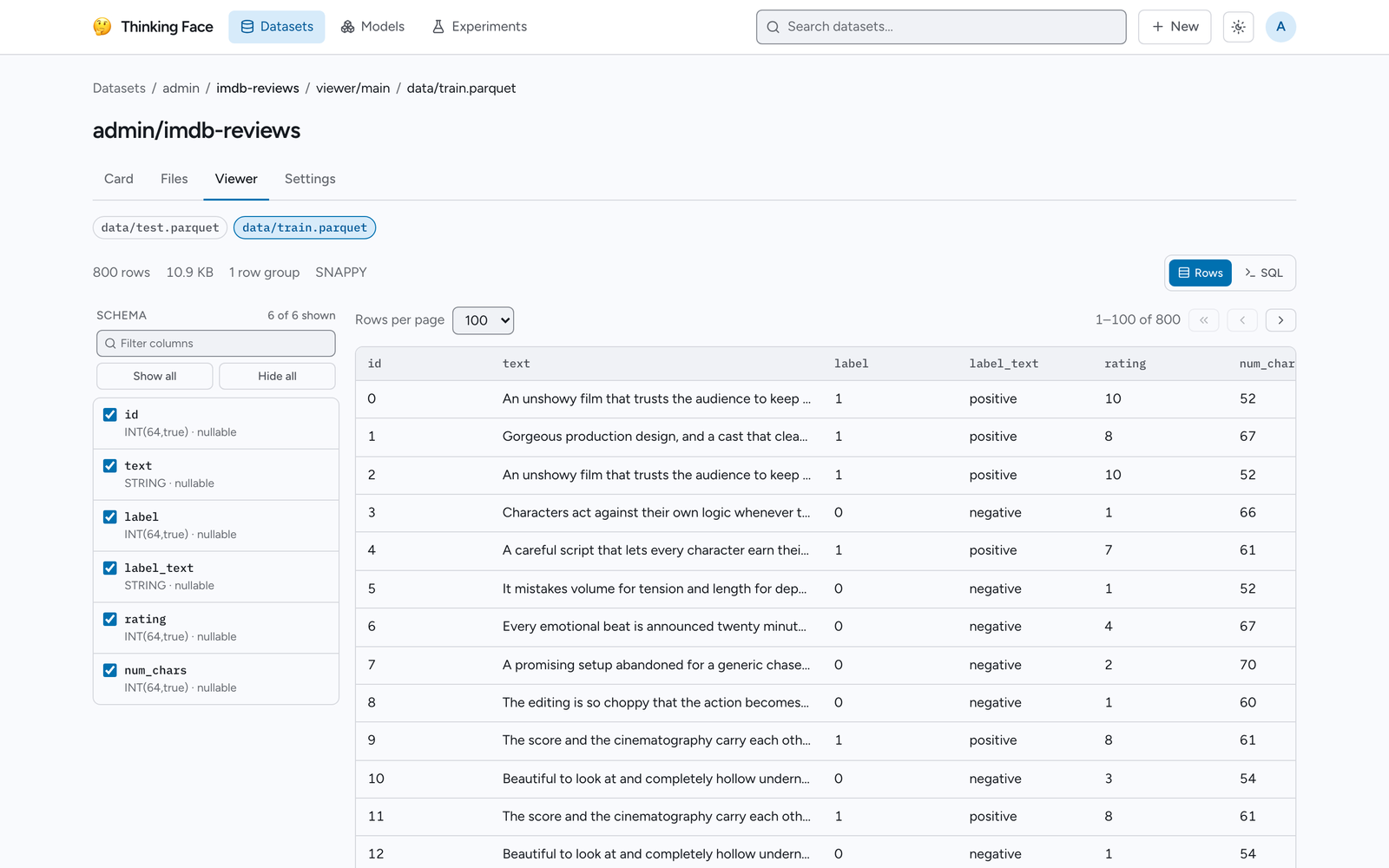
If a repository has more than one indexed Parquet file, a row of path badges above the table lets you switch between them; the currently open file is highlighted.
What you see
Above the table, a status line reports the file's total row count, its size, its number of row groups, and its compression codec (when the file records one).
The schema panel on the left lists every column with its logical type (or its raw Parquet type when no logical type applies), whether it's nullable or repeated, and — for columns the server recognizes as holding a particular kind of data (for example an image or audio feature) — a badge naming that feature type. A filter box narrows the column list, and "Show all" / "Hide all" buttons toggle visibility for whatever the filter currently shows. Hiding a column removes it from the fetched and displayed rows, not just from view.
Paging through rows
The Rows tab pages the table 50, 100, 200, or 500 rows at a time; first-page, previous-page, and next-page controls sit next to a "X–Y of N" counter. Changing the rows-per-page setting or which columns are visible returns you to the first page.
Paging never downloads the whole file. The server reads the underlying Parquet file directly from object storage using a pure Go Parquet implementation (no CGo, no external process), and skips whole row groups that fall entirely outside the requested page — so opening page 40 of a many-gigabyte file costs about as much as opening page 1. A local disk cache on the server means a second request for the same file is even cheaper.
Query with SQL
A second mode, switched to with the SQL toggle next to the row/rows-per-page controls, runs arbitrary SQL against the file using DuckDB compiled to WebAssembly, entirely in your browser — queries never reach the server. The first time you open it, your browser downloads the whole file, so this mode has a 500 MB size cap; a larger file shows a message explaining that and directs you back to the Rows tab or to downloading the file. Results are capped at 10,000 rows and can be copied out as CSV.
On a production deployment backed by real GCS (STORAGE_DRIVER=gcs), that initial download
goes directly from your browser to the storage bucket rather than through the server, so the
bucket itself must be configured to allow it — if you're setting up storage yourself, see
Deployment.
What the viewer does not do
- It is read-only. There is no way to edit rows or write back to the file from the viewer.
- It only understands Parquet. It will not open CSV, JSON Lines, Arrow IPC, or any other tabular format, even if the data underneath is equivalent.
- The Rows tab's column visibility and paging are display-only conveniences; they do not
create a new file or change what
hf_hub_download/git cloneretrieve. - The SQL mode's 500 MB cap and 10,000-row result cap are hard limits of running DuckDB in the browser, not server-side settings you can raise.